


There are three simple ways to take a screenshot on a laptop:
- Use the Print Screen key: Press the Print Screen key on your keyboard to take a screenshot of your entire screen. The screenshot will be saved to your clipboard.
- Use the Alt + Print Screen key: Press the Alt and Print Screen keys at the same time to take a screenshot of the active window on your screen. The screenshot will also be saved to your clipboard.
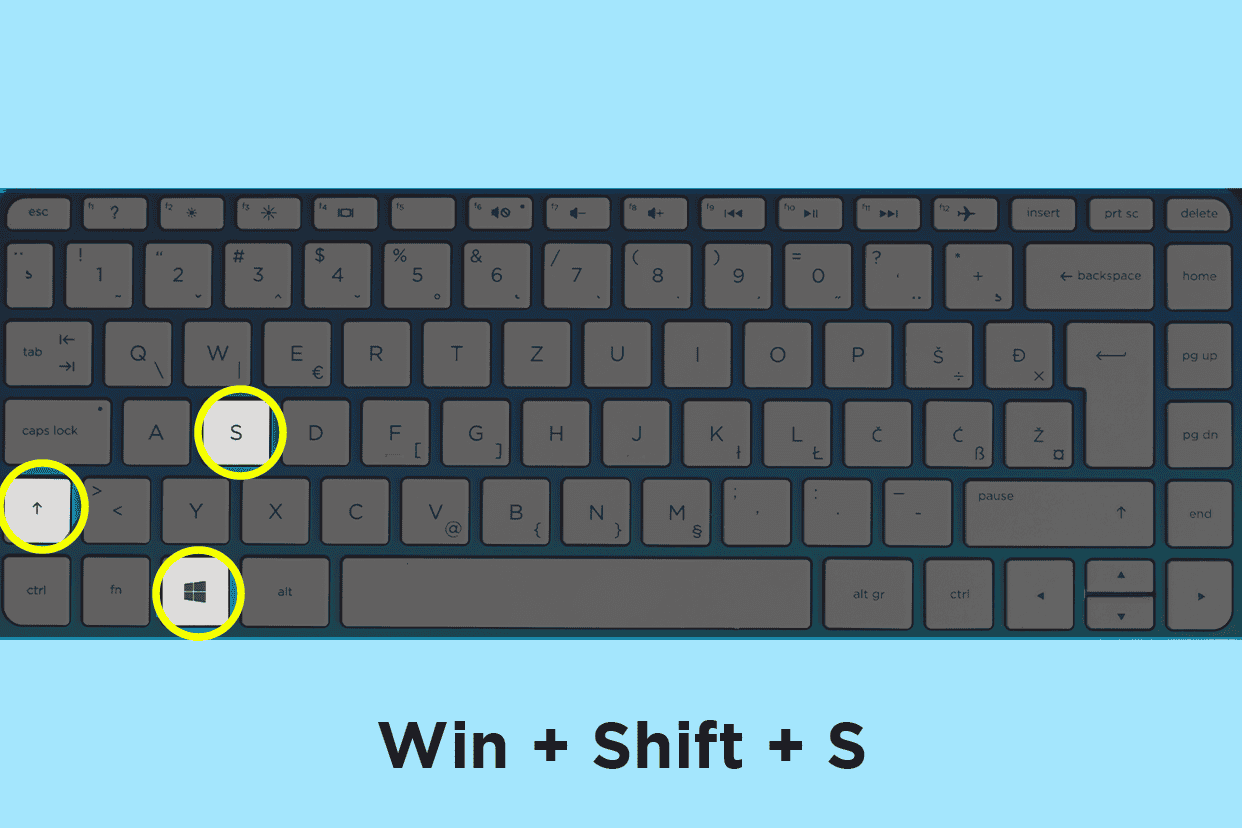
- Use the Snip & Sketch tool: To take a picture of your screen, press the Windows key, Shift, and S together. Then, use your mouse to choose the part of the screen you want. After you've selected it, click on the "Snip" button. The picture will be saved so you can paste it into any program that can handle images.
Once you have taken a screenshot, you can paste it into any program that supports images, such as Microsoft Paint, Adobe Photoshop, or Microsoft Word.
Also Read:- Which brand is the best for buying a gaming laptop?